Body
General Information
-
File shares are network drives set up for users who need network space beyond the common T drive.
-
File shares are not automatically mapped when access is granted. You will need to map the file share.
-
The file path format is: \\files\name (e.g., \\files\finance).
Example File Share Names
-
AARC
-
FinaidFinaiddev
-
Finance
-
Financedev
-
Payroll
-
Payrolldev
-
STAFS
-
Student
|
-
Studentdev
-
Thirdparty
-
Thirdpartydev
-
TSUS_Finance
-
TSUS_FinanceDev
-
TSUS_Payroll
-
TSUS_PayrollDev
|
Mapping Network Drive (Windows)
Map a network drive to get to it from File Explorer in Windows without having to look for it or type its network address each time.
-
Open File Explorer from the taskbar or the Start menu, or press the Windows logo key + E.
-
Select This PC from the left pane. Then, on the File Explorer ribbon, select More and choose Map network drive.
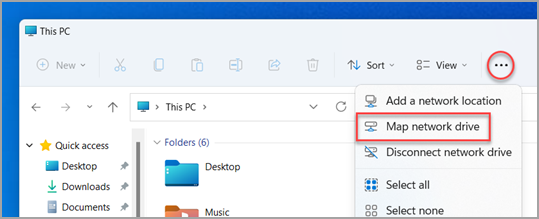
Note: If you don't see Map network drive on the More menu, you can right-click the This PC node in the folder pane and you'll see the command there.
-
In the Drive list, select a drive letter. (Any available letter will do.)
-
In the Folder box, type the path of the folder or computer, or select Browse to find the folder or computer. To connect every time you sign in to your PC, select Reconnect at sign-in.
-
Select Finish.